You can assign a security profile to an employee in the Employee-General screen in BillQuick. To edit or customize those security settings: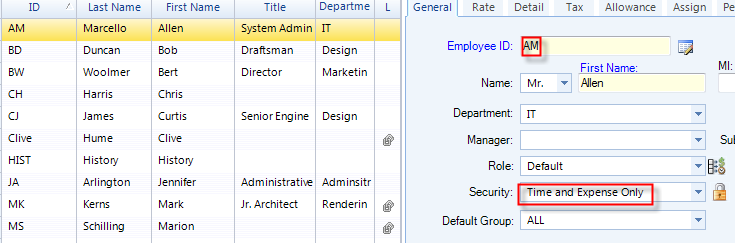
1. Open the Security screen from the Settings menu or Employee screen itself.
2. Select the relevant Employee from the dropdown, and edit the default security permissions by selecting the module on the left and checking/unchecking the permissions on the left.
3. Click Save. On being prompted to change the default security settings for the user, choose Yes. The employee’s security template changes to 'Custom'.
4. If you want to apply the same settings to other users, then select Security Profiles from the Tools button.
5. Save the edited settings as a new profile or template by entering a name for it.
6. This new security profile can be applied to other employees. The easiest way to do this is via the Change tool in the Employee screen.
7. Select the relevant employees from the dropdown and the assign the new security profile to them.
8. Click the Apply button to perform the batch update.