You can set up ArchiOffice/EngineerOffice to synchronize events, contacts and emails with your client software [i.e., Entourage or Apple Mail, Address Book (Apple Contacts) and iCal (Apple Calendar)]. Follow these steps to do so:
System Setup
System Setup
1. Create a folder called ArchiOffice Scratch in your Home folder and then create a sub-folder labeled Applescript.
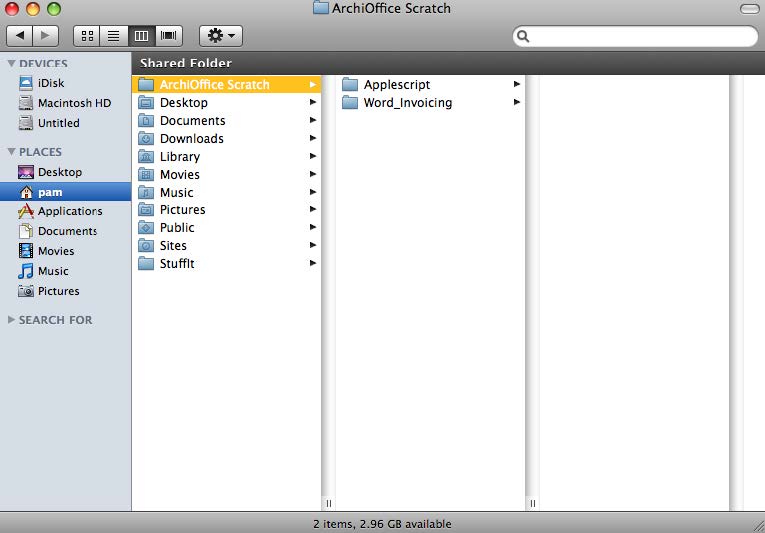
2. Download BatChmod. BatChmod is a free permission utility that provides the ability to set folder read/write permissions easily.
3. Run BatChmod and click File to choose the new ArchiOffice Scratch folder created above. Make sure ALL boxes are checked on the BatChmod screen.
4. Click Apply and then authenticate.
4. Click Apply and then authenticate.
5. Run BatChmod on the HD:Applications:ArchiOffice 20xx folder.
6. Go to HD:Applications:ArchiOffice 20xx:servoy:application_server:reports.
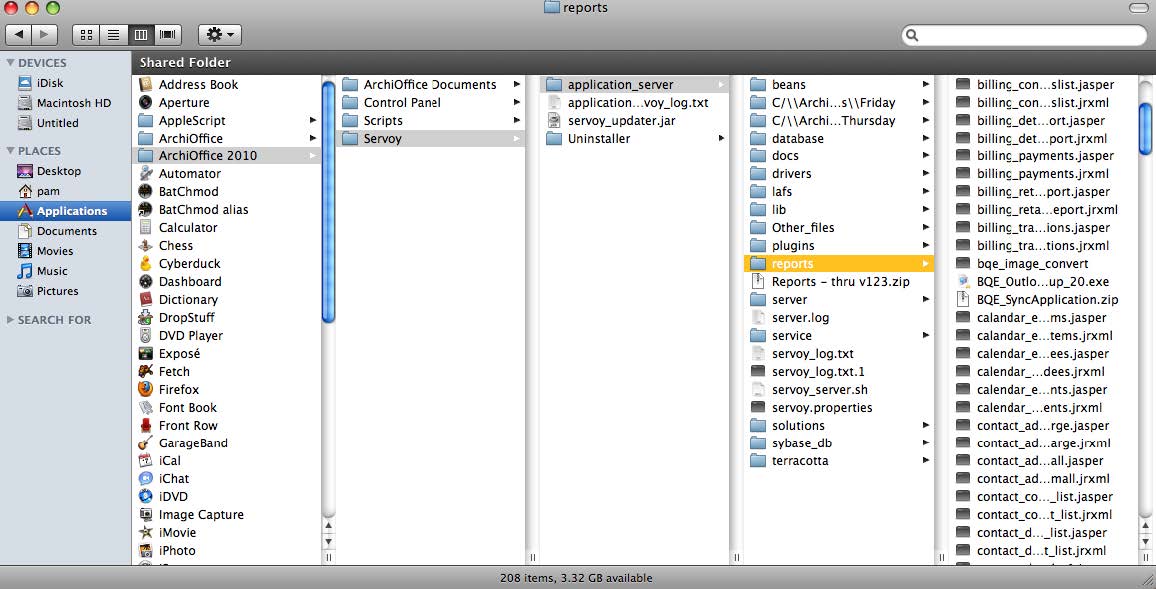
7. Verify that there is a file called BQE_SyncApplication.zip in this folder. This is the required AppleScript folder.
The first time a Mac client tries to sync, the BQE_SyncApplication.zip file is copied to the ArchiOffice Scratch folder and unzipped into the following folder structure: ArchiOffice Scratch > Applescript > Application.
The first time a Mac client tries to sync, the BQE_SyncApplication.zip file is copied to the ArchiOffice Scratch folder and unzipped into the following folder structure: ArchiOffice Scratch > Applescript > Application.
ArchiOffice Setup
1. In ArchiOffice, go to Preferences > Users > Sync.
2. Select the ArchiOffice Scratch folder in the Scratch Folder field. (This must be set up for each individual client that plans to sync.)
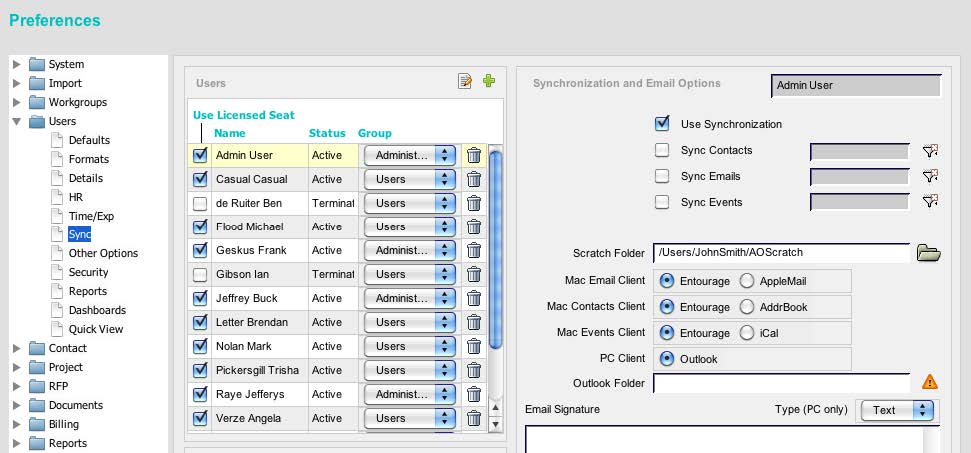
3. Choose whether you will be syncing with Entourage or Apple Mail, Address Book and iCal.
3. Choose whether you will be syncing with Entourage or Apple Mail, Address Book and iCal.
4. Now go to Preferences > Documents > Types. Set the Email Document Type for the system (e.g., emlx).